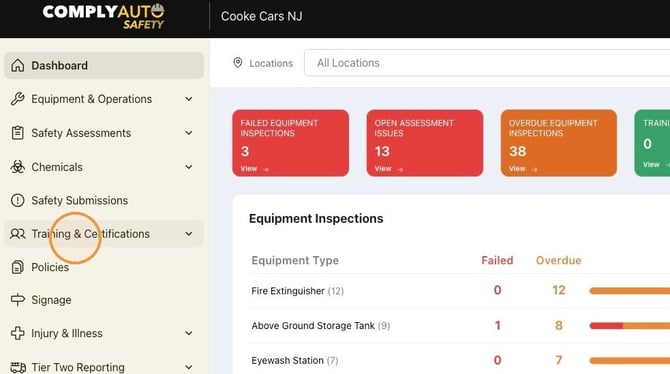
1. Navigate to https://safety.complyauto.com/dashboard and click "Training & Certifications."
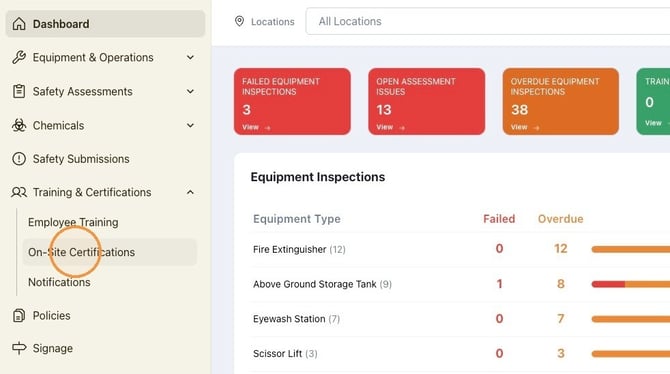
2. Click "On-Site Certifications."
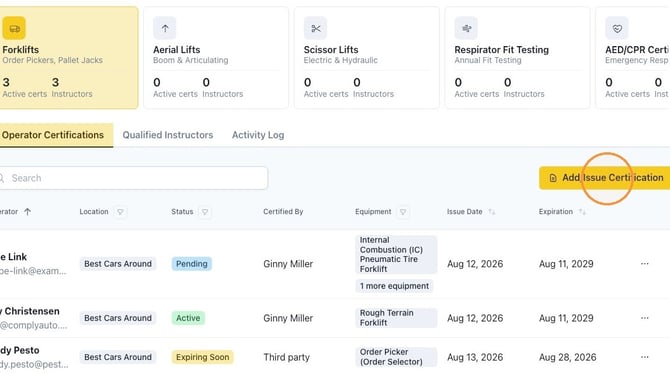
3. Click "Add/Issue Certification."
4. If you'd like to record a preexisting employee certification, click "Add Third-Party Cert."
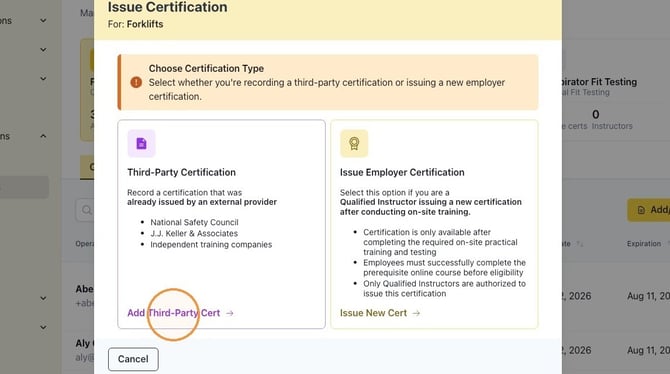
Alert! To issue employer certification, please follow the steps outlined in this article: How To Issue a Forklift Certification.
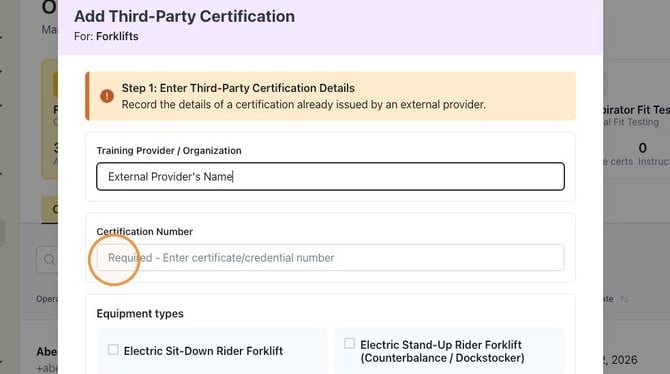
5. Type the name of the third-party provider in the "Training Provider" field and enter the certification number in the next field.
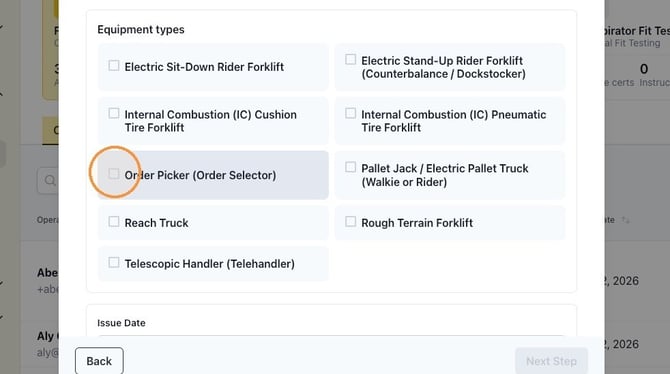
6. Click beside the appropriate certifications and click "Next Step."
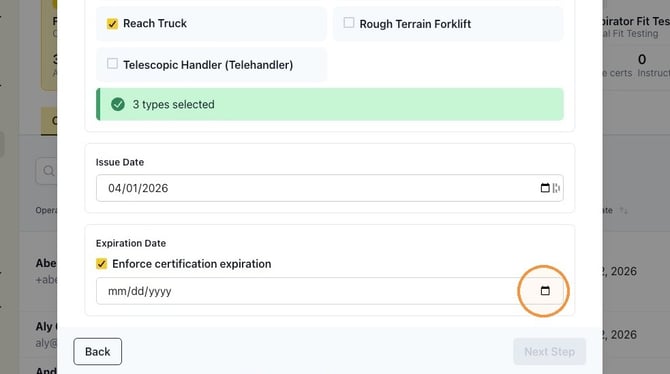
7. Click the calendar icon to include the date the certification was issued.
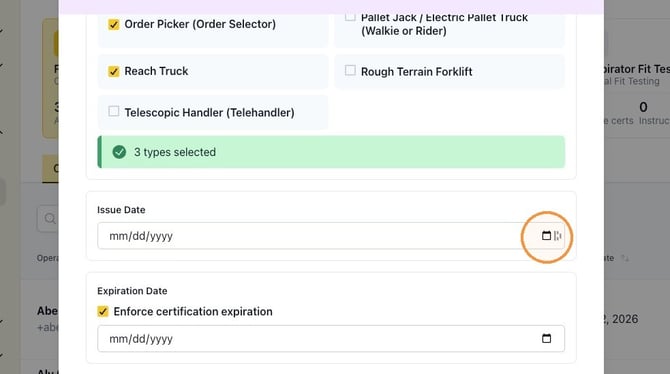
8. Click the calendar icon to include the expiration date. Click "Next Step."
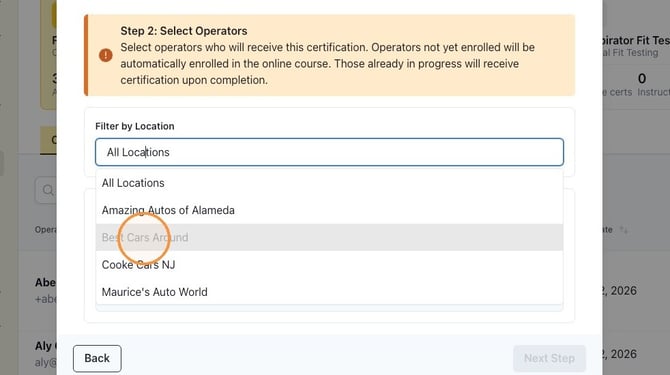
9. Click the "All Locations" field and select the appropriate locations from the drop-down list.
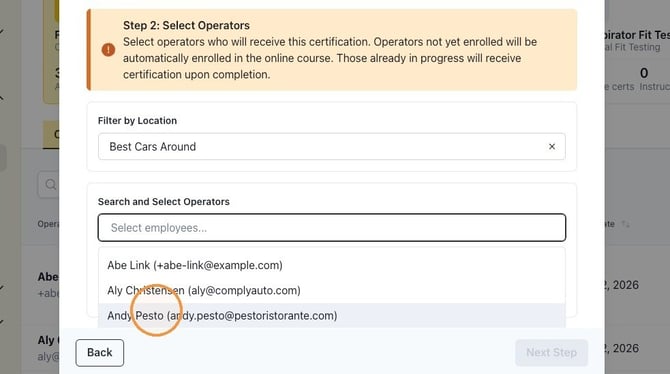
10. Click the "Select employees" field and choose the correct employee from the drop-down list.
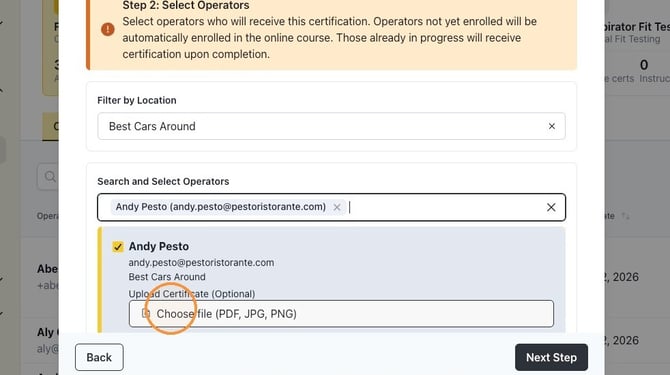
11. Upload a copy of the certificate and click "Next Step."
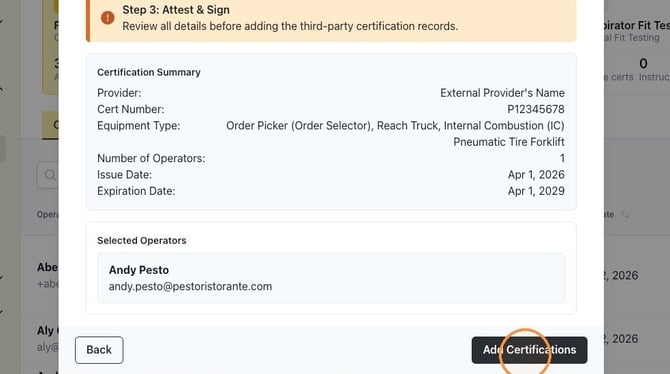
12. Review the information and click "Add Certifications."
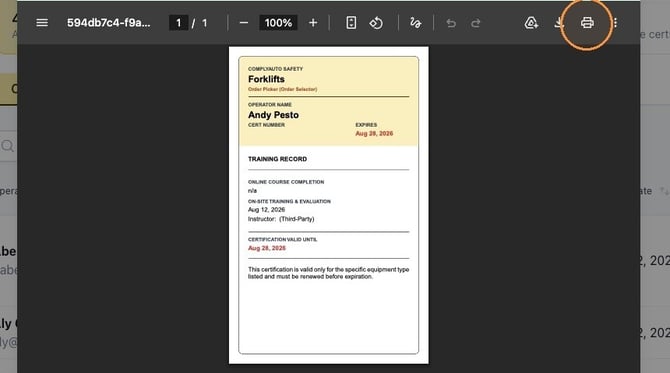
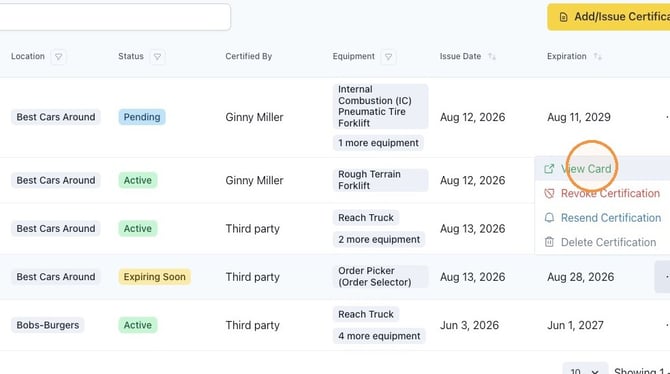
13. Click the three dots on the right to "View Card."
14. Click the printer icon to print the card or save it as a PDF.