
>Scan the document into the ComplyAuto Desktop Application or do >Print >'Send to DealCheck'
>Once files are uploaded into the left hand panel of the Desktop App select 'Upload to Folder'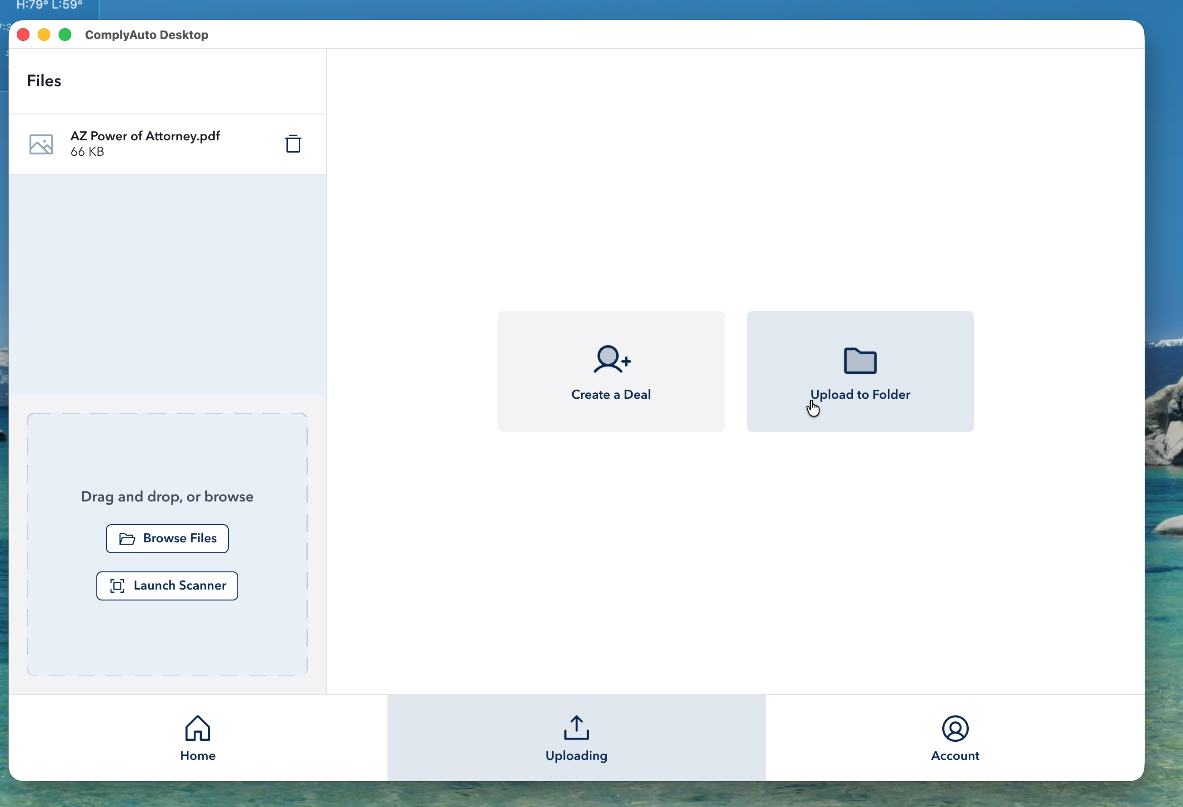
>Open the Deal Checks folder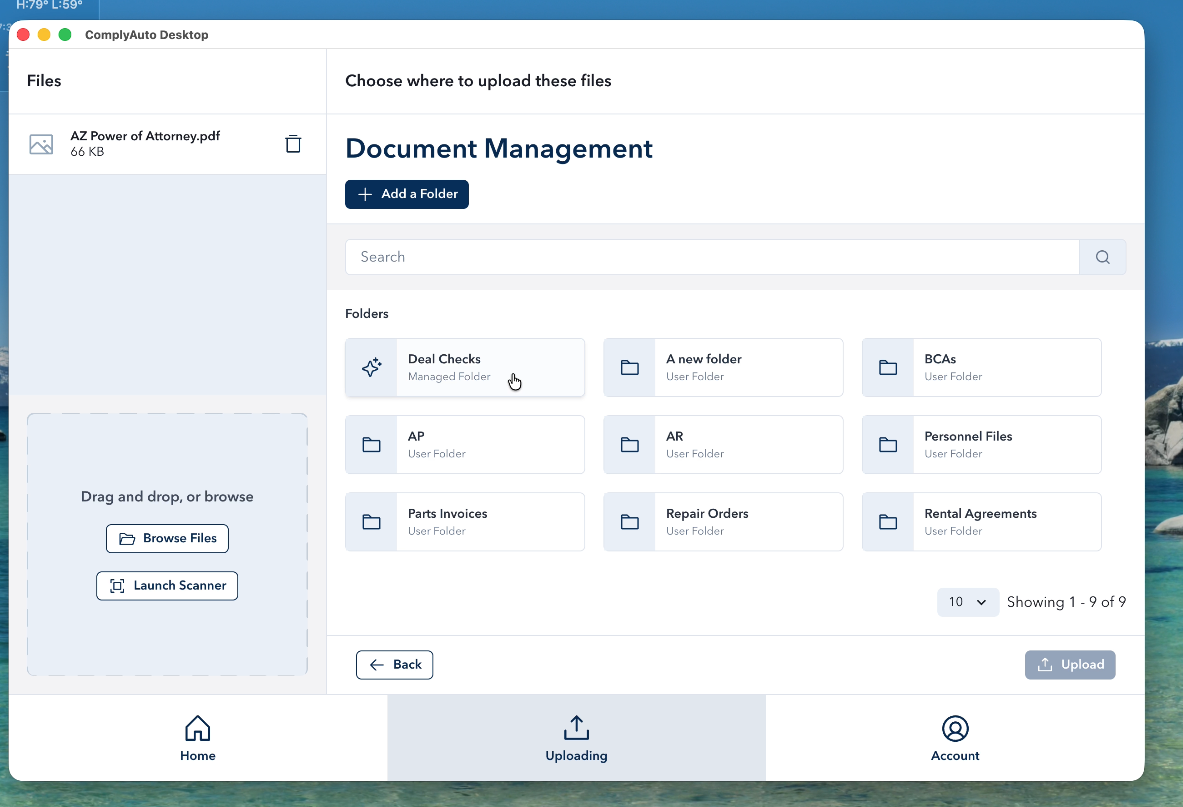
>Locate and select the folder for the customer you want to upload this file to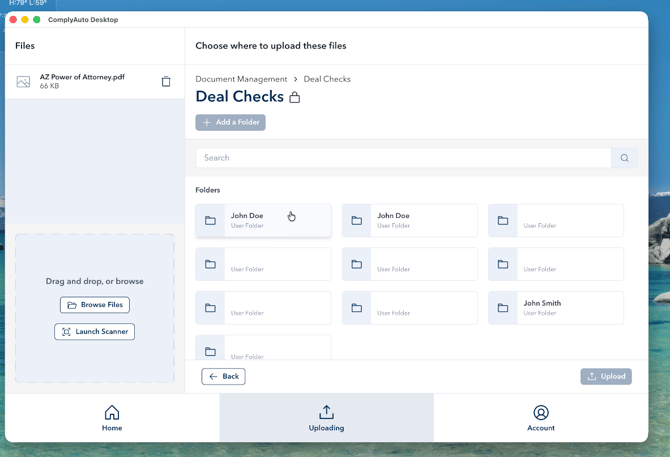
>Click Upload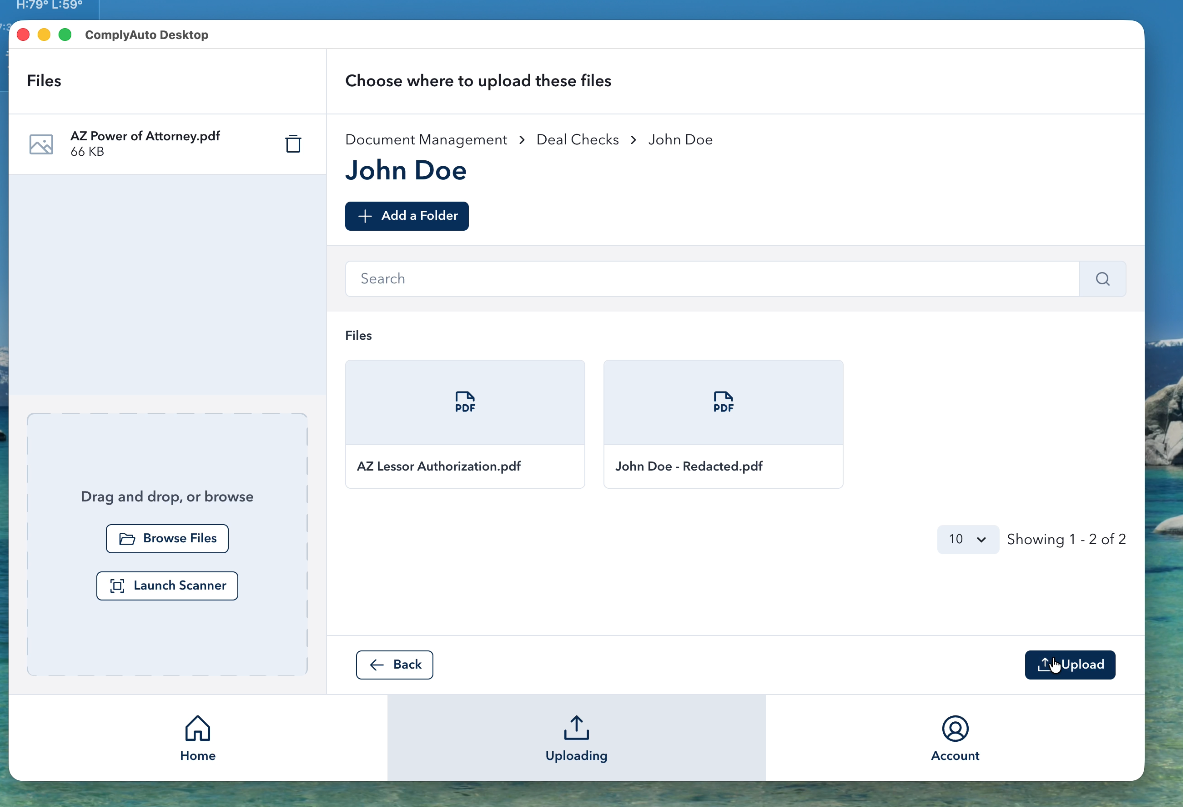
>You'll get a 'Files Uploaded!' notification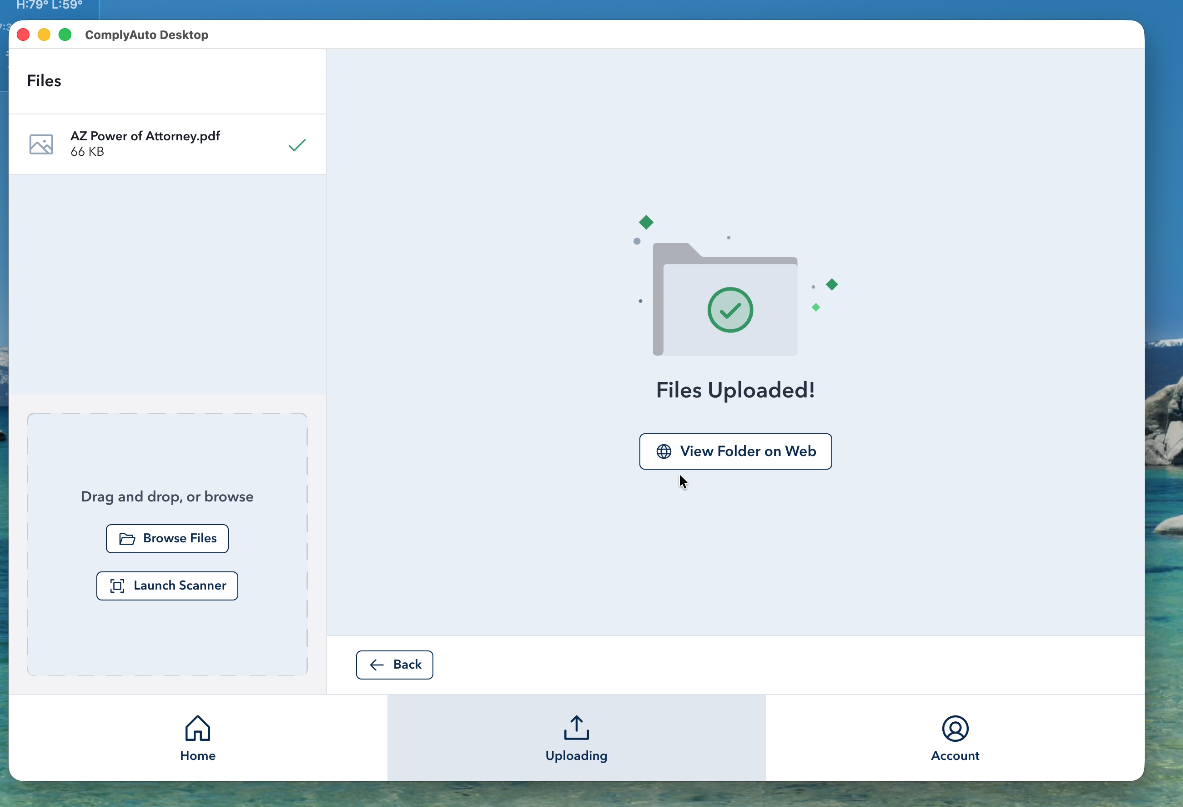
>Find and open the deal in DealCheck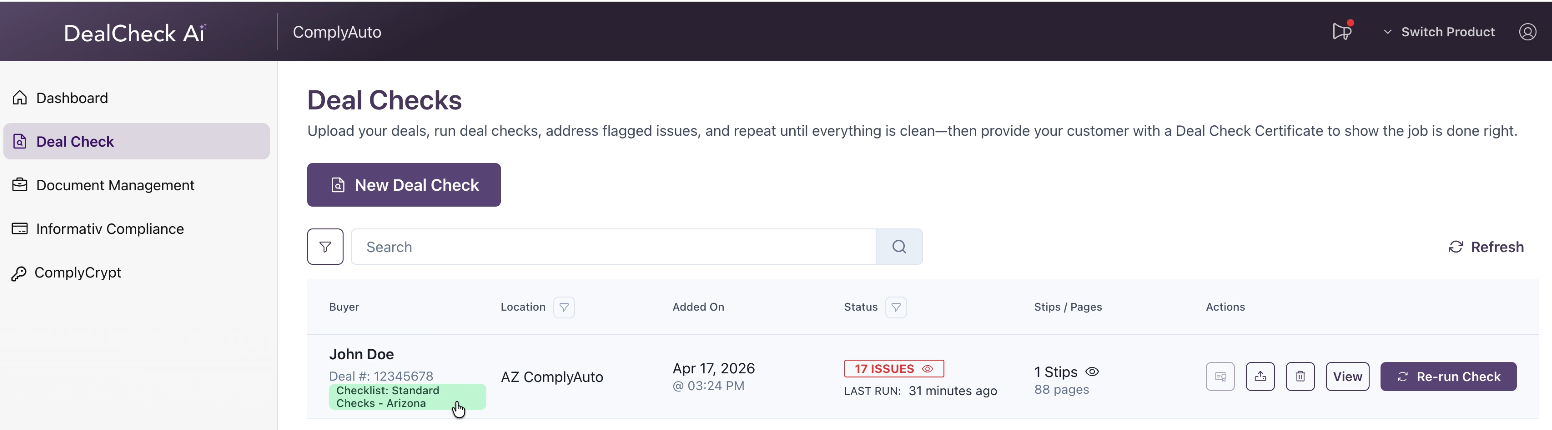
>Click 'Fix Issue' then 'Choose Existing File'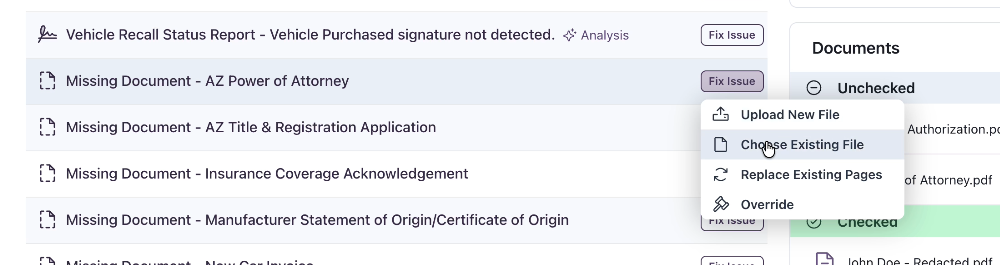
>Select the file you just uploaded. You can rename it and categorize it if you would like, then click 'Review'.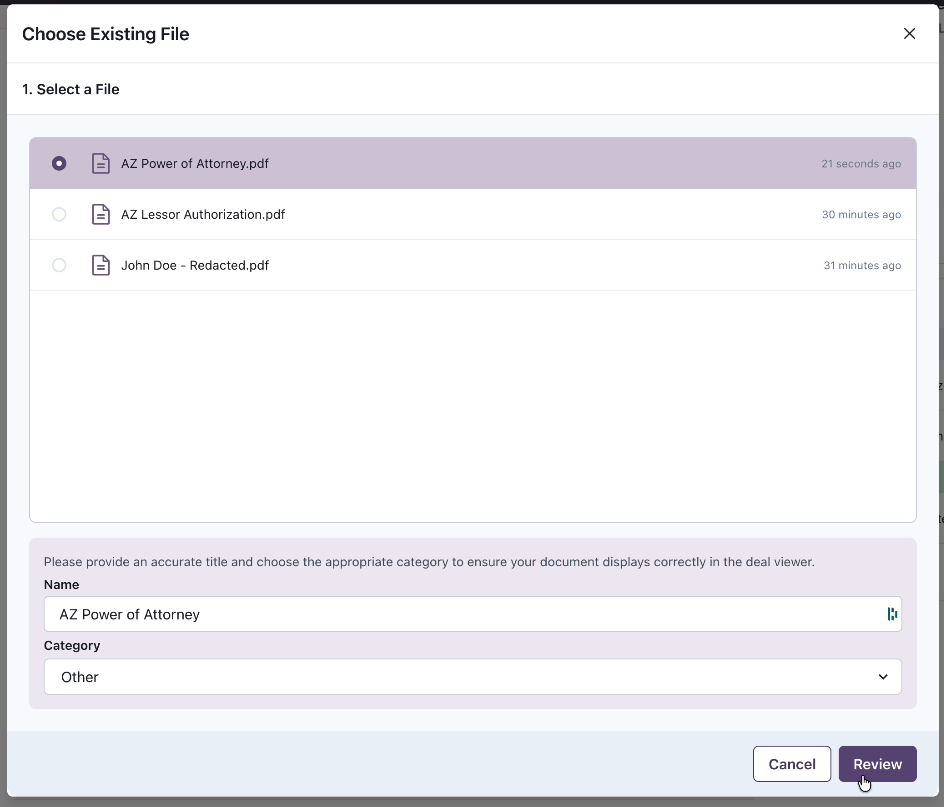
>Review, and then click Submit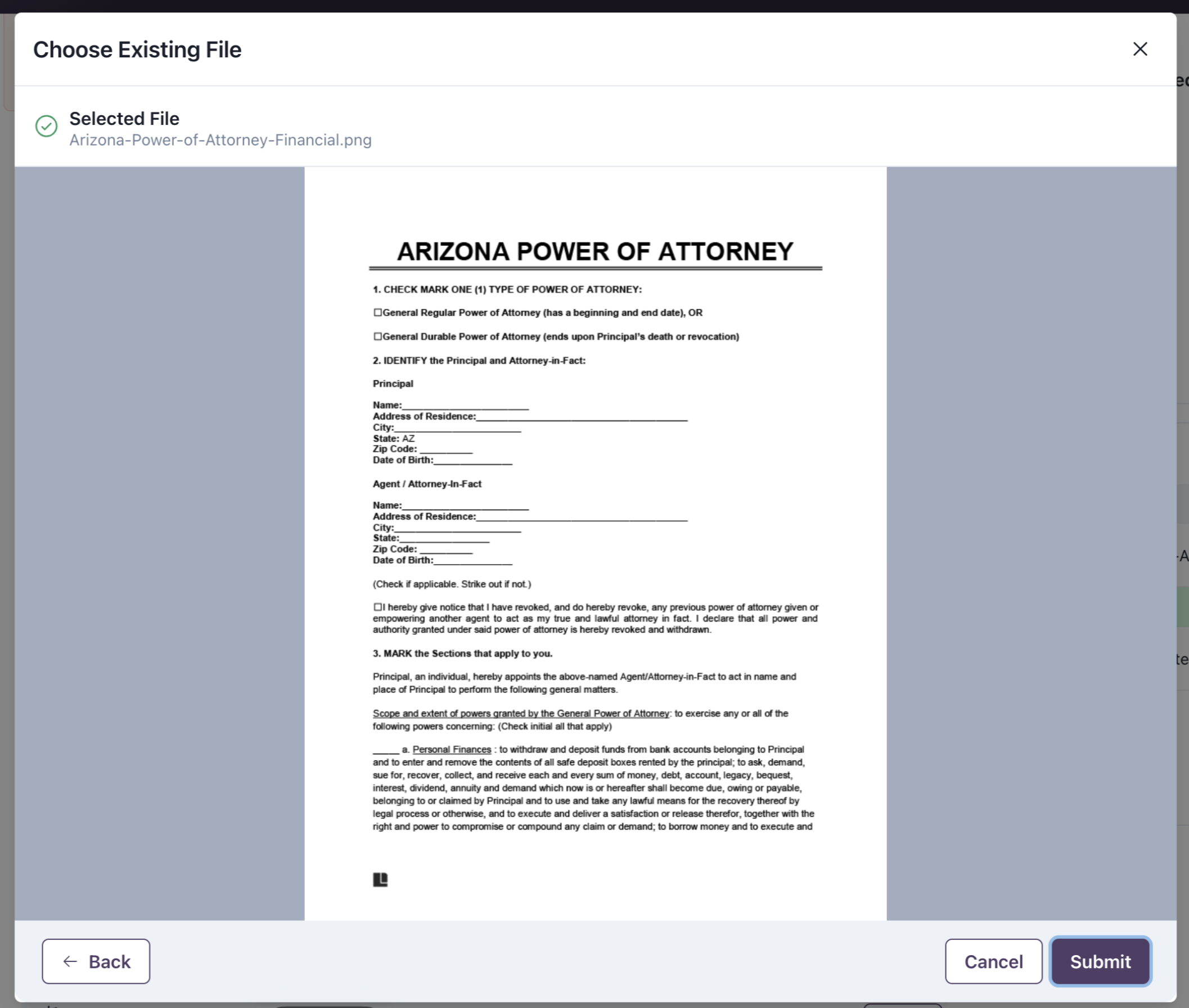
>The issue will now pull to the 'Issues Mitigated' section.