>Login to ComplyAuto at https://login.complyauto.com/ and select the DealCheck Product
>Open the ComplyAuto Desktop App
>Open the Tekion application
>Search for the deal you want to select and click on it
>Click the Deal File Folder Icon at the top of the deal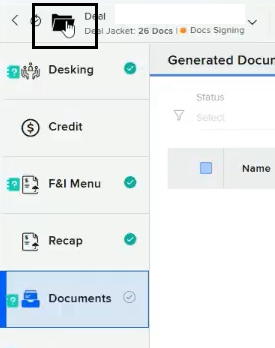
>Select all deal jacket files with the checkbox at the top of the column 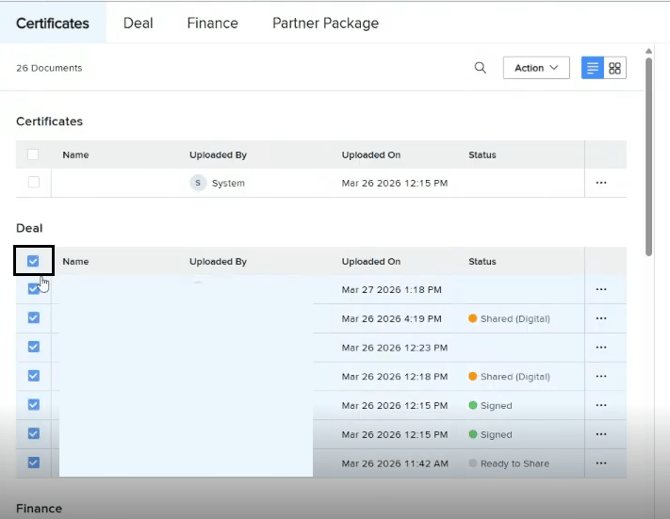
>Click 'Action' and then 'Merge and Download'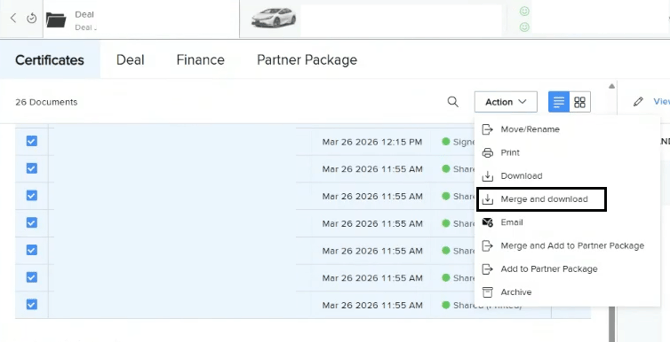 >One the system is done with the merge, the document will open in another tab.
>Select Print or CTRL+P once the merged PDF opens and select 'Send to DealCheck' as the printer option.>Select 'Send to DealCheck' in the printer drop down options and click Print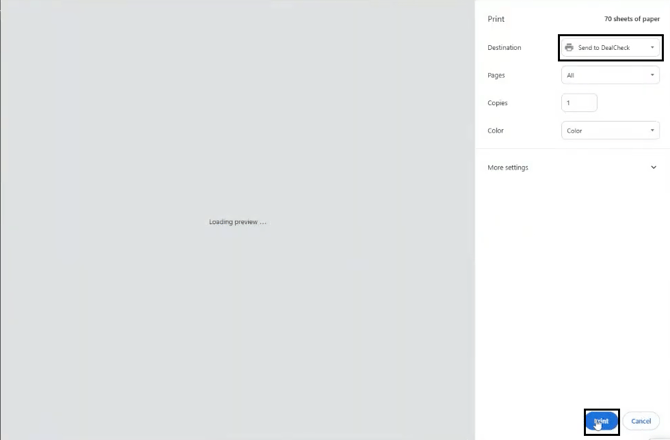
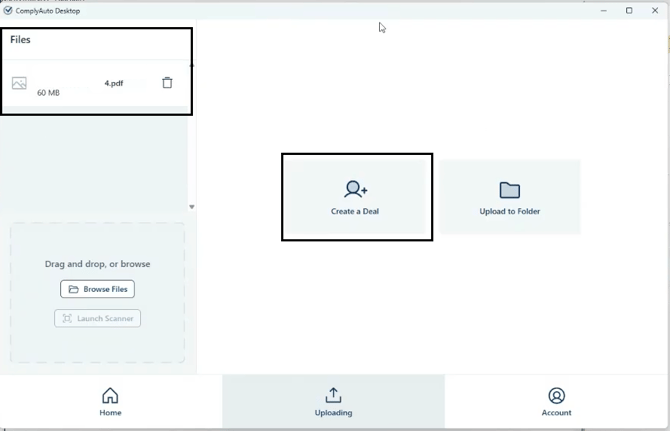
>When all necessary files are loaded into the Desktop App on the left hand side under Files, select 'Create Deal'
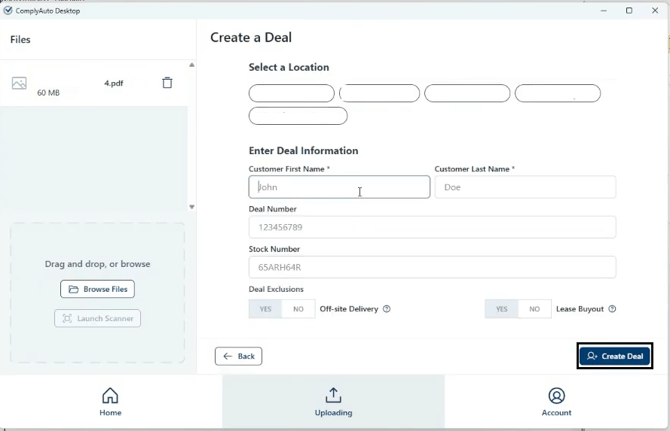
>Select the location, enter the customer’s name, and deal number or stock number (you don't need both)
>Select Create Deal
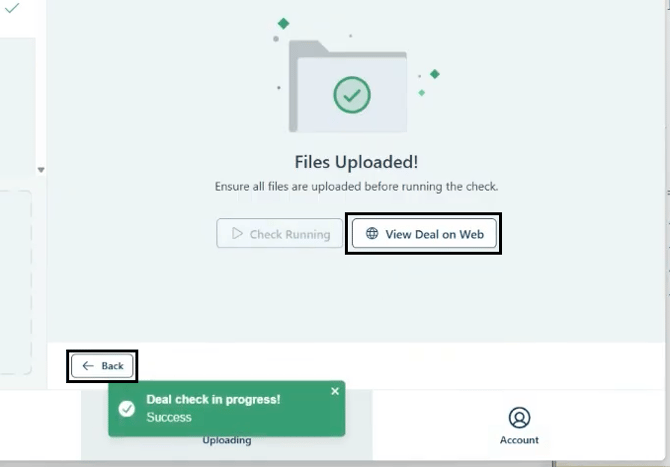
>Click 'Run Deal Check'
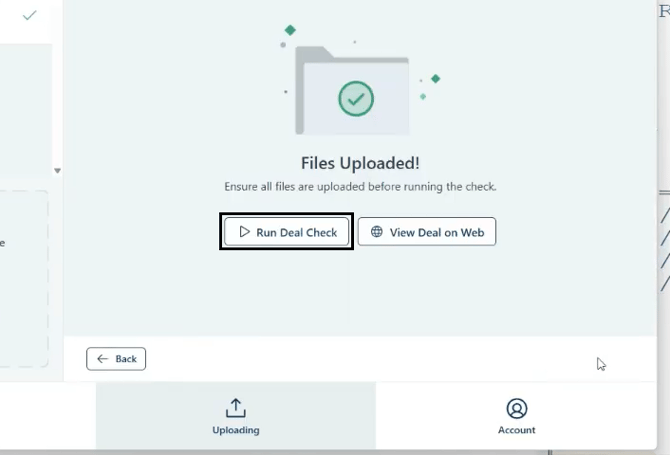
>Click 'View Deal on Web' to review and fix the issues the AI finds on the deal
>To run another deal, click Back and start the process over