
Need help getting started with DealCheck? Get started using one of these articles:
How do I run a Deal Check if I'm not using the Desktop App?
How do I get files into DealCheck Ai using the Print to DealCheck function on the Desktop App?
How do I get files into DealCheck Ai by Scanning using the Desktop App?
1. Once you've checked your deal, you'll see a summary of the deal at the top of the screen. If any information is missing, this can be manually edited using the "Edit & Re-run Checks" button.
Note that if the deal has already been checked and did not error, running it again will incur another charge.

2. Below the summary of the deal you'll find any issues the AI detected within the deal.

3. When mitigating an issue ensure you read the anaylsis and understand what it's saying before deciding how to resolve.

4. You can also click on an issue from the detected list.

5. Clicking on the issue on the issue detected list will open the deal up and take you directly to the documents checked plus the analysis.

6. In order to mitigate or resolve an issue you have a few options. To begin, click "Fix Issue"

7. Your first option is to "Upload New File"

8. Clicking "Upload New File" will open a screen to upload the new file(s).
Click "Add Files" and upload the missing documentation.

9. Click "Review"

10. Look at the Preview of the document you've uploaded to ensure it's the correct page, then click "Submit".

11. To fix an issue the second option is to "Replace Existing Pages"

12. After selecting "Replace Existing Pages" check the box next to the page(s) on the right you want to replace

13. Click "Done Selecting"

14. Click "Add Files" to select the pages you want to use as replacements

15. Click "Review"

16. Review the old page(s) and the new page(s) to verify what you are replacing is correct. Click "Submit".

17. The third option is to "Override"

18. Overrides should only be used in instances where uploading a missing document or replacing existing pages will not fix the issue.
You are required to enter an explanation for why you are overriding this issue, please ensure the explanation is detailed and complete as it will be recorded and date stamped by your user.
Note: If you find yourself overriding the same issue frequently please have your leadership team reach out to your customer success manager with details so we can adjust it for you.
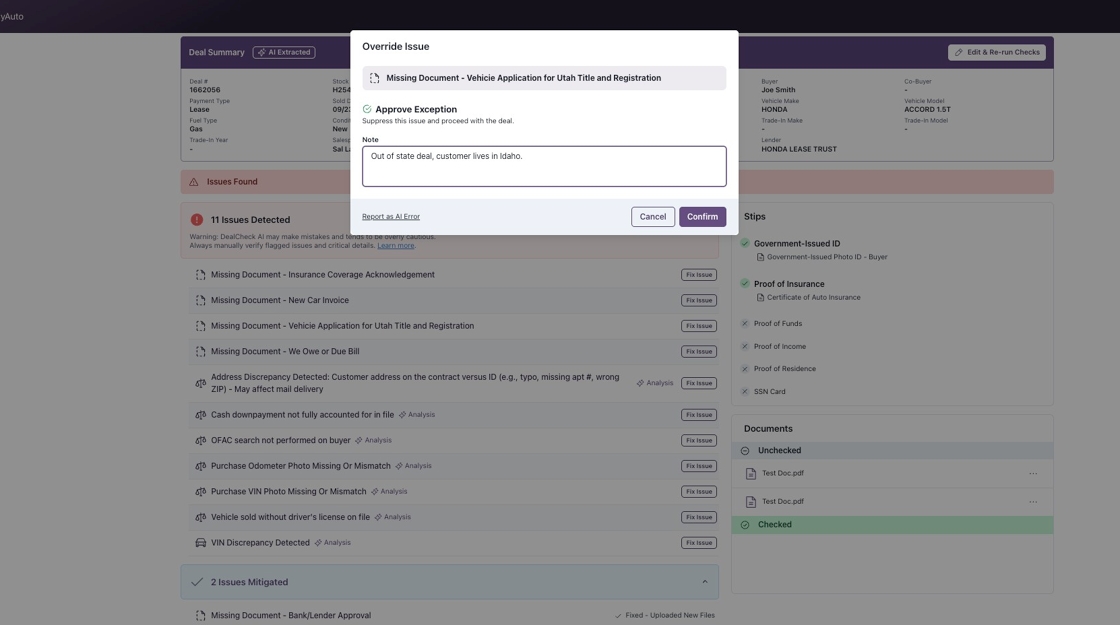
19. The last option to mitigate an issue exists under "Override".
In the bottom left hand corner you can click "Report as AI Error"

20. You should only report something as an AI error after investigating the issue, reviewing the documents, and having verified the AI made a mistake in it's analysis.
For example, if you know you uploaded the Deal Recap and it says it's missing, review the deal to verify the deal recap is in fact in the deal (make note of what page for your explanation) and that it's legible. Often times a bad or incomplete scan is why the AI isn't picking up the document, and in that case you'd just want to replace that page with a clear or complete scan.

21. If you determine this is truly an error by the AI and the documentation requested is present in the deal, you'll need to select the reason as to why this is an AI error and then enter a detailed explanation. This allows our team to review the submitted AI errors and help tweak the AI accordingly to prevent a similar issue in the future.

22. Note that as you mitigate issues they will pull to the "Issues Mitigated" header on the screen.

23. If you hover over the details to the right of the mitigated issue, you'll be able to see the date the issue was mitigated, by which user, and how it was mitigated . This will include notes from the user if it was overridden or marked as an AI Error.

24. You can also view the Deal by Clicking "View Deal" at the top of the screen.

25. This will show you the Deal documents organized in different sections. There is a search bar in the top left hand corner, and a Download PDF option in the right hand corner.
Note: If you download the deal after you have finished mitigating all issues it will include the DealCheck Summary Report.

26. Unless instructed by your leadership team, do not re-run the check after you've finished mitigating all of the issues the AI found (as this will charge you for another check). Once you have finished mitigating all of the issues on the deal, you'll be able to view/print your DealCheck Summary or Detail Report without needing to re-run the deal.
The Summary Report will go over in detail each of the issues mitigated and includes the action taken, date, user, and any notes.
The Detailed Report is the same as the Summary Report, but also includes a list of all of the checks that were successfully passed.

27. From the Deal Check landing page you will be able to see that your deal now shows as Mitigated. From here, you can now also print the DealCheck Summary or Detailed Report.
