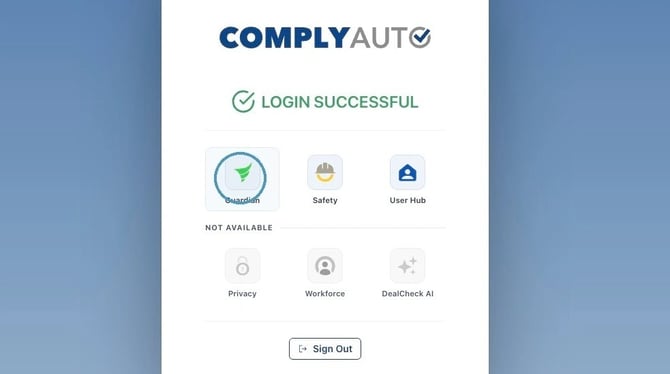
1. Navigate to https://login.complyauto.com/. Click "Guardian."
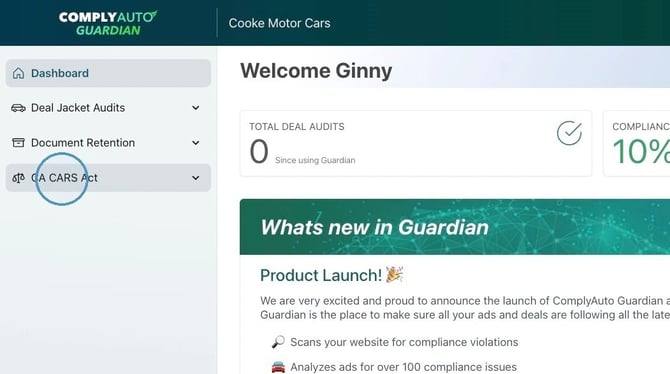
2. Click "CA CARS Act."
3. Click "Magic Links."
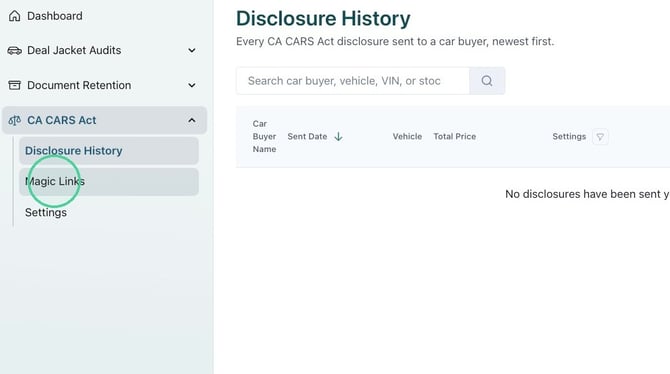
4. Navigate to the desired magic link and click the copy icon.
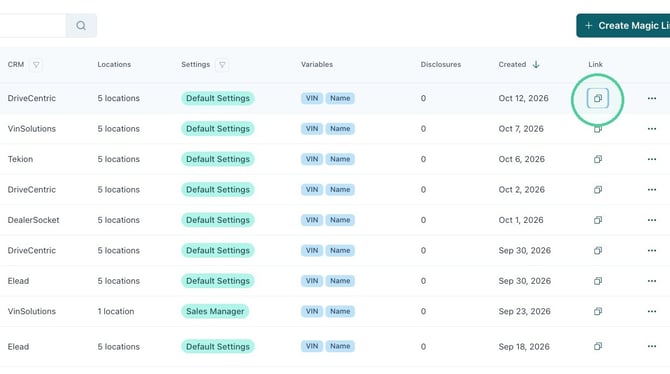
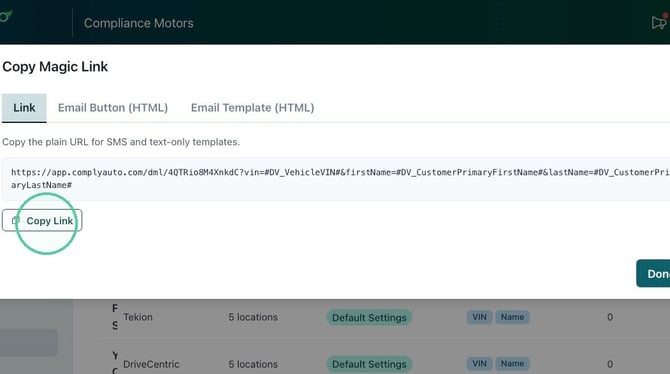
5. For SMS or text-only templates, copy the URL to paste in the template. This URL can be used in your CRM auto-response texts as well as chat modules.
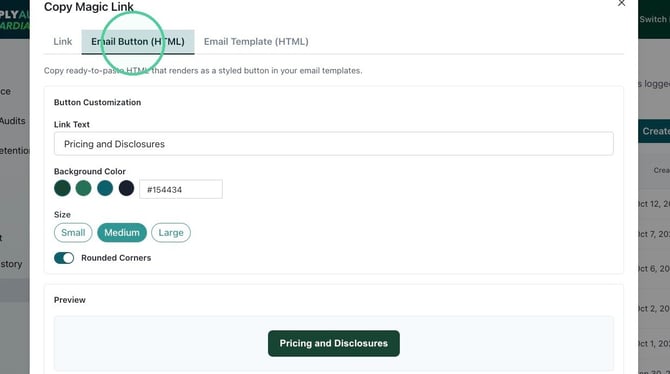
6. To add the magic link to CRM email templates, click "Email Button (HTML)." You can customize the button here.
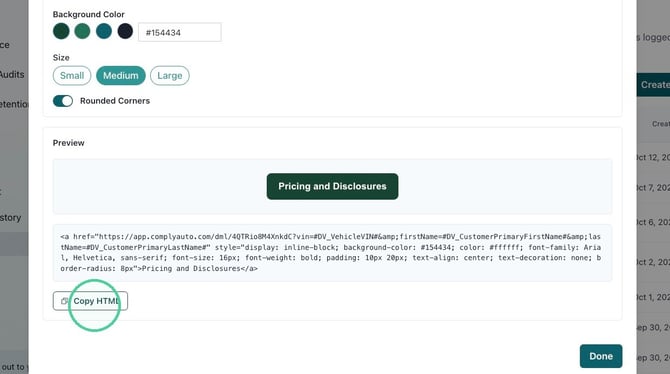
7. Click "Copy HTML" and paste this code in all first communication email templates.
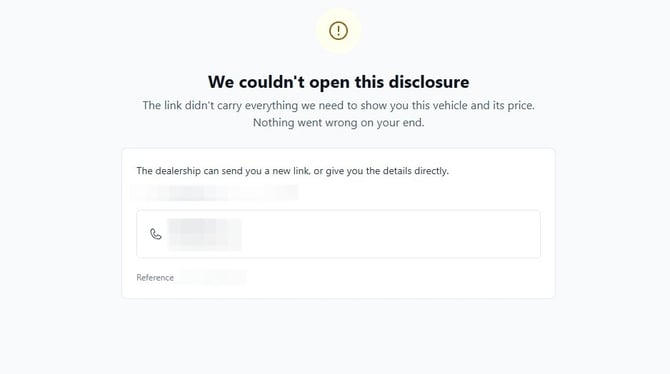
Alert! Just pasting the HTML into the template doesn't always work. If you get this error, please check these troubleshooting steps:
- Ensure you have copied and pasted the full HTML.
- Try replacing the variables that are pulling from the CRM with the actual CRM variables (aka tokens, merge codes, etc). The data pulling from the CRM is the Vehicle VIN, customer first name, and customer last name.
- Are there any extra spaces added when the link is pasted? Remove the spaces and try again.
- If the disclosures still do not work, please send the URL of the error message to your CSM for review.
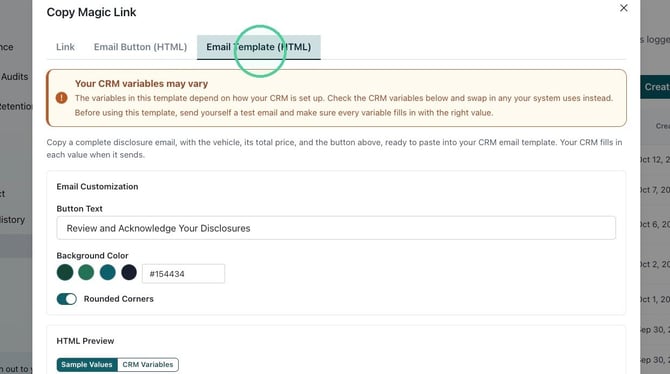
8. To add a full email template to your first communication email templates, click "Email Template (HTML)." Currently this feature is live for VinSolutions and eLead, but more CRMs are in the works.
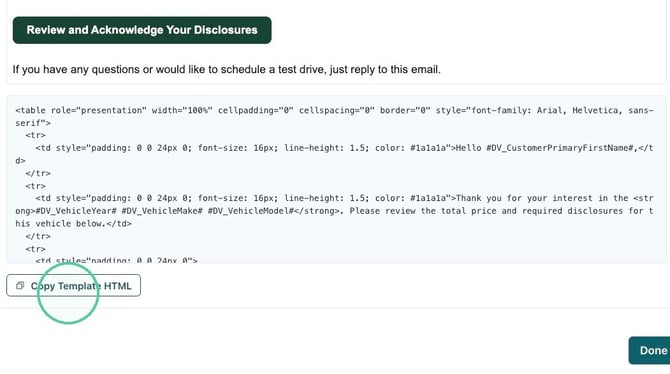
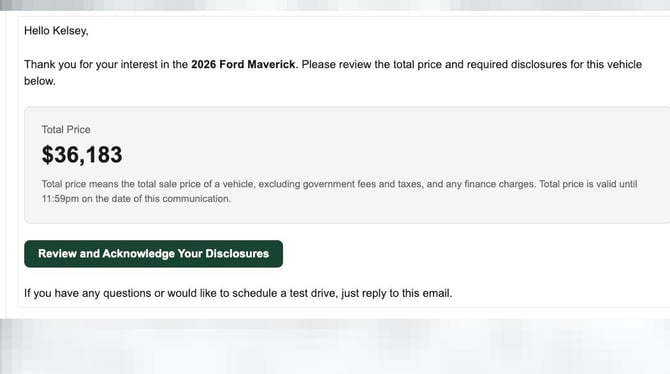
9. Here is a sample of what the email template looks like.
10. To add the full email as a template in your CRM, click "Copy Template HTML" and paste it in a CRM email.