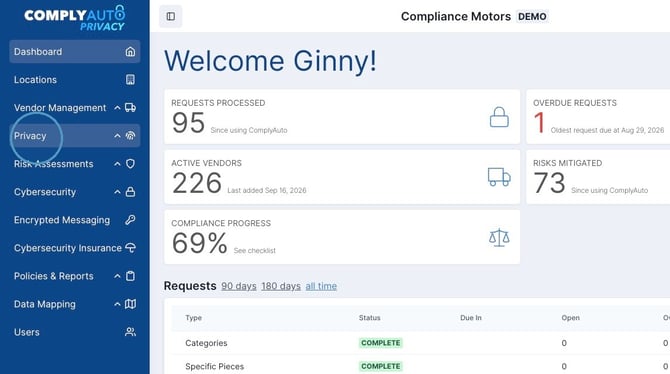
1. Navigate to https://privacy.complyauto.com/dashboard and click "Privacy."
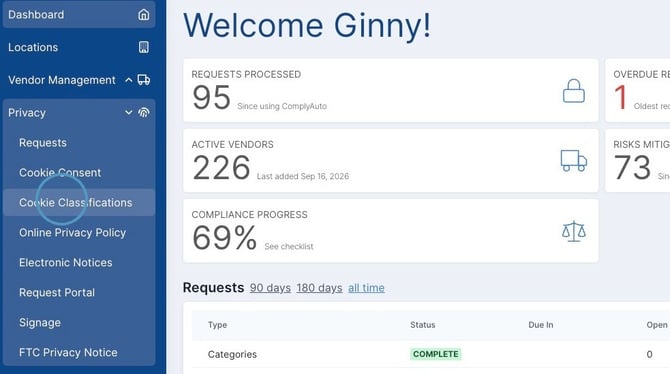
2. Click "Cookie Classifications." The cookie classification tool lists all the assets that are loading on your website including cookies, iframes, pixels, and scripts.
3. Cookie Classification gives you visibility into everything loading on your website and allows you to customize your cookie classification as needed. Cookies are divided into Essential, Functional, Analytics, Targeting, and Unclassified.
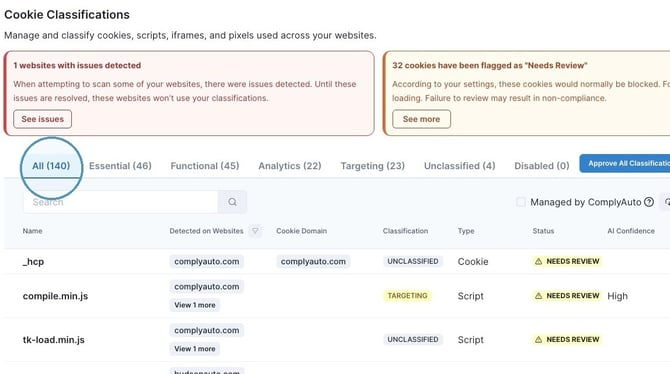
4. Our team has researched and categorized thousands of scripts for you, but there are millions of scripts used for online marketing and website development. That's why some scripts require your review.
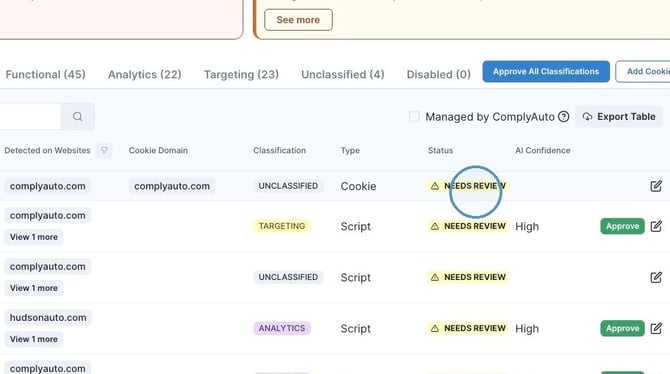
Alert! While AI gives potential classification categories, we highly recommend you review cookies individually. Some scripts perform different functions depending on that vendor's contract with you. We are unable to know exactly what function a script is performing on your website to be able to accurately classify all of them for you.
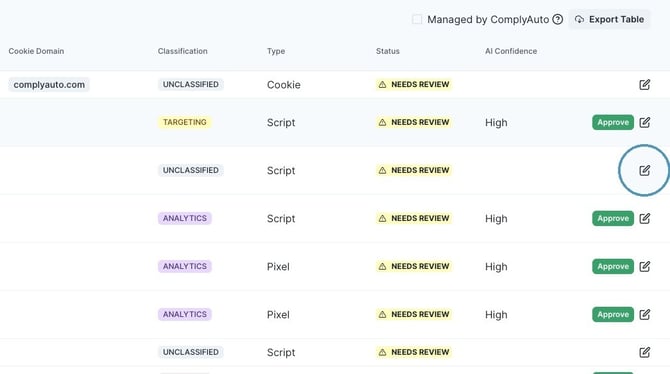
5. To edit a classification, click this icon.
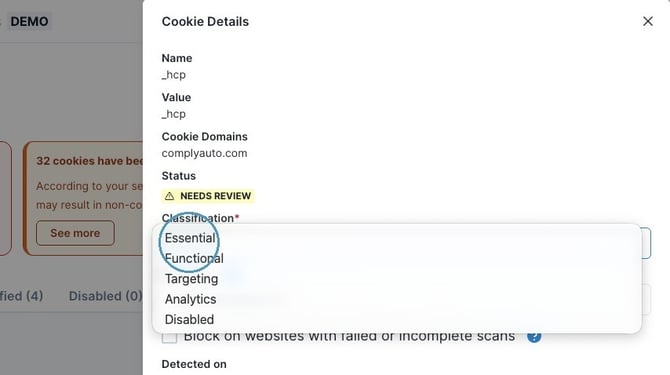
6. Click the drop-down list under "Classification" and choose the correct cookie classification. You can also disable cookies here.
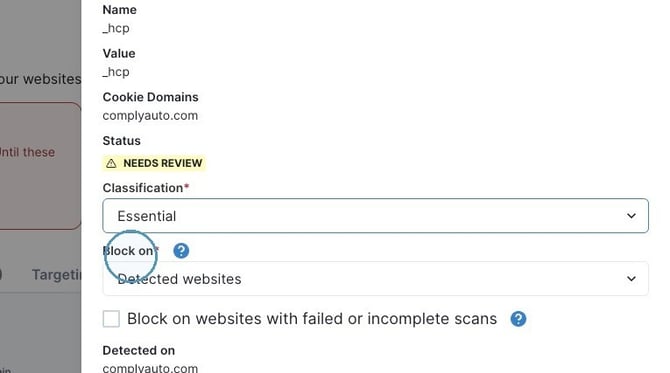
7. You may also block cookies from loading on your websites.
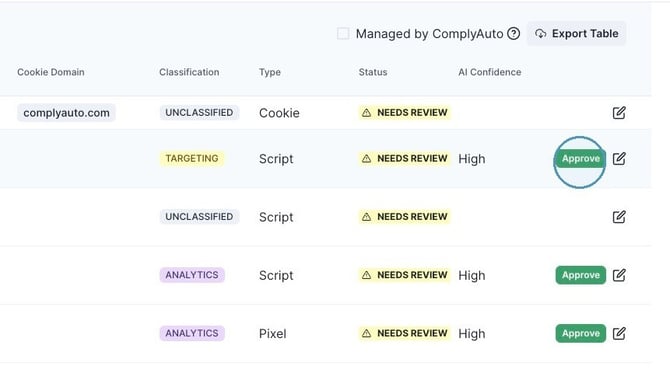
8. If a cookie needs review and is already properly classified, click "Approve."
Tip! We recommend checking with your marketing department or agency and your website provider for help classifying cookies. Asking other departments within your organization can also be helpful; many of them might know what a certain cookie does.
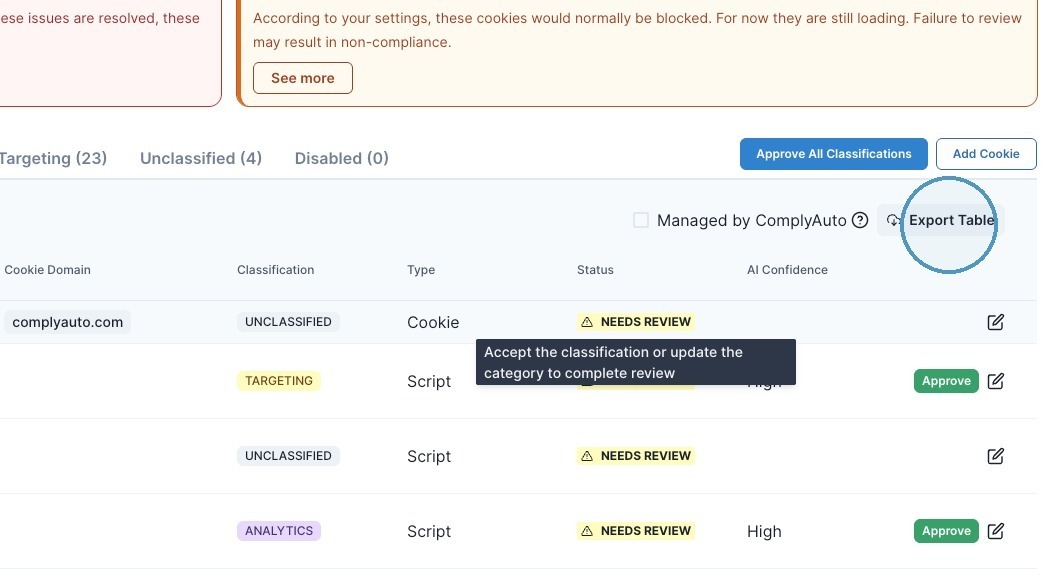
This list can be easily exported so that you can share it with other team members.