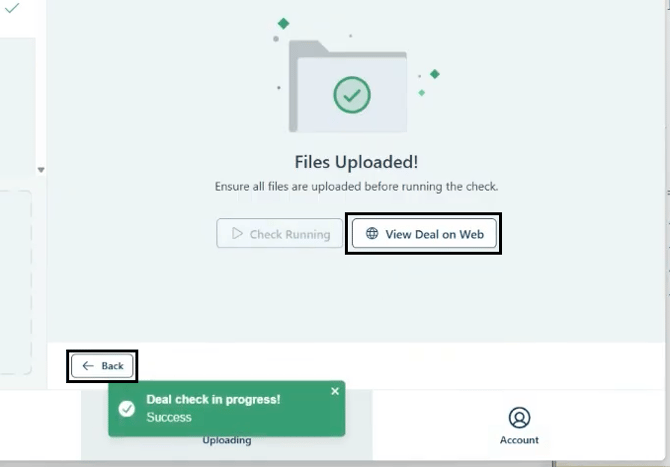
>Login to ComplyAuto at https://login.complyauto.com/ and select the DealCheck Product
>Open the ComplyAuto Desktop App
>Open the CDK application
>Search for the deal you want to select
>Select “J” for Jacket in the search icon
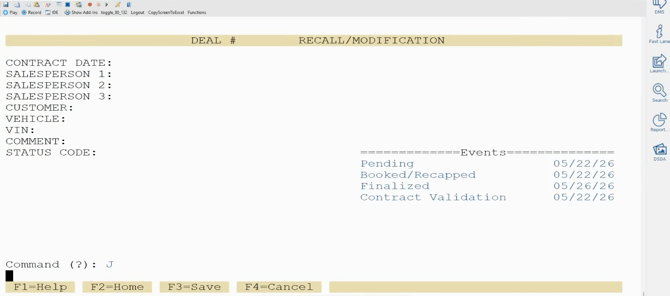
>When folders appear, check the box at the top to select all files
>Click Review on the left-hand side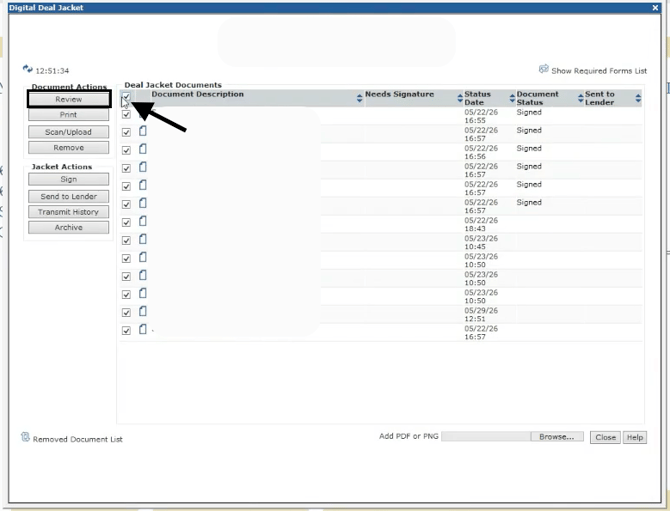
>Click the Printer icon 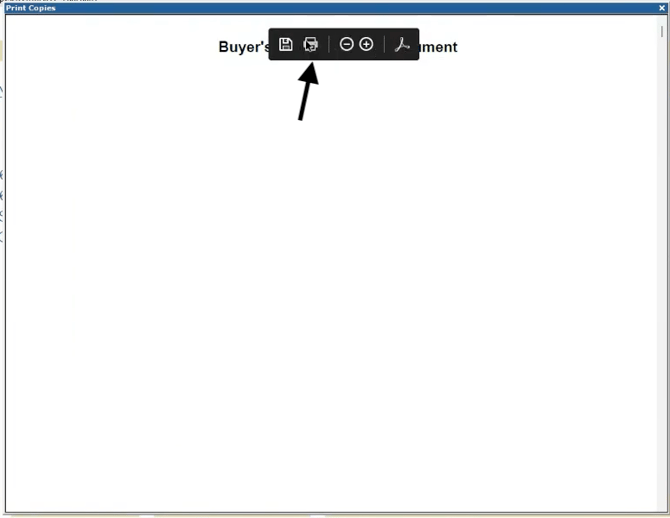
>Select 'Send to DealCheck' in the printer drop down options and click Print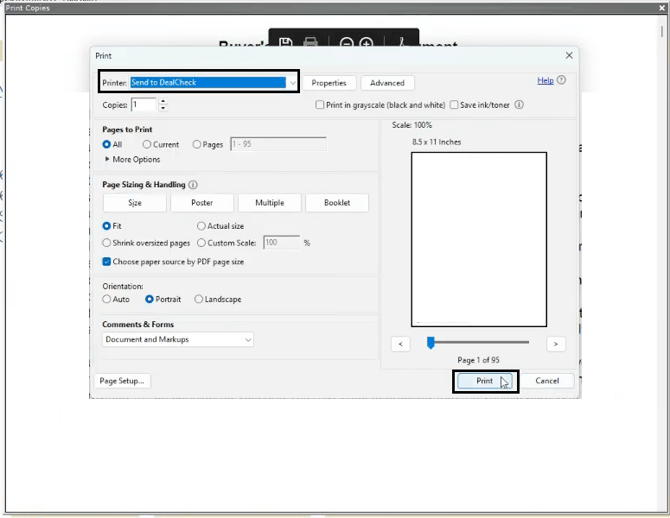
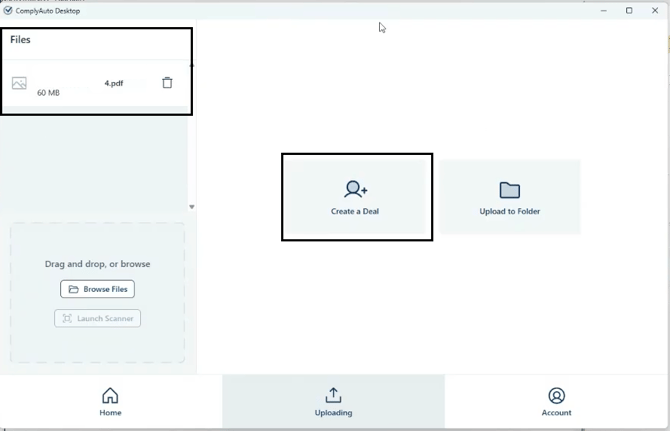
>When all necessary files are loaded into the Desktop App on the left hand side under Files, select 'Create Deal'
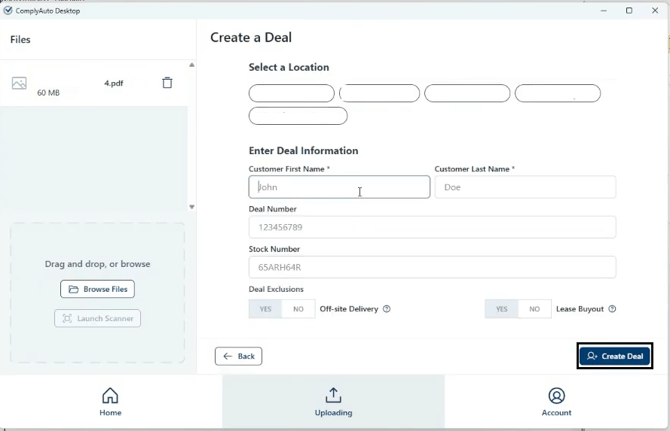
>Select the location, enter the customer’s name, and deal number or stock number (you don't need both)
>Select Create Deal
>Click 'Run Deal Check'
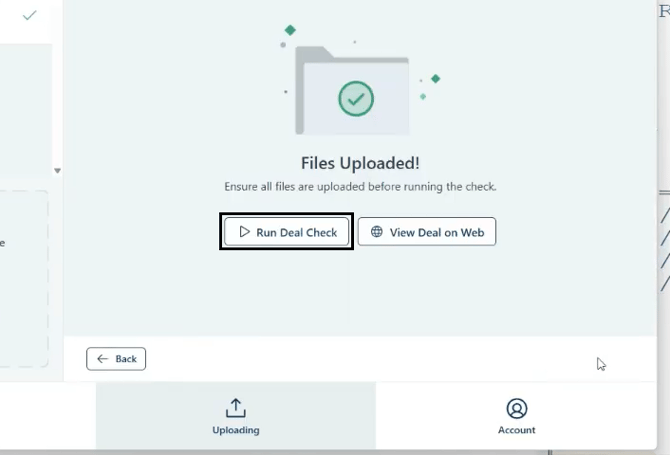
>Click 'View Deal on Web' to review and fix the issues the AI finds on the deal
>To run another deal, click Back and start the process over