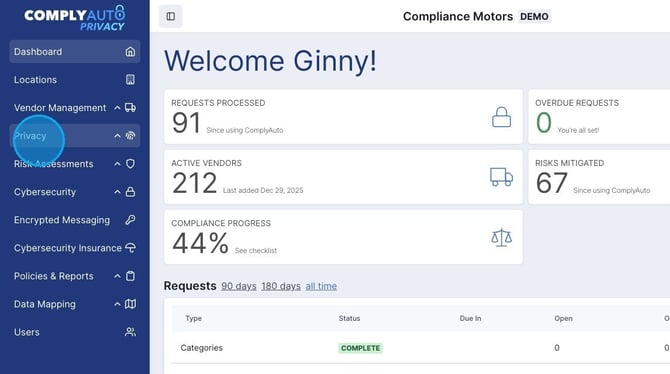
1. Navigate to your ComplyAuto Privacy dashboard and click "Privacy"in the left-hand menu.
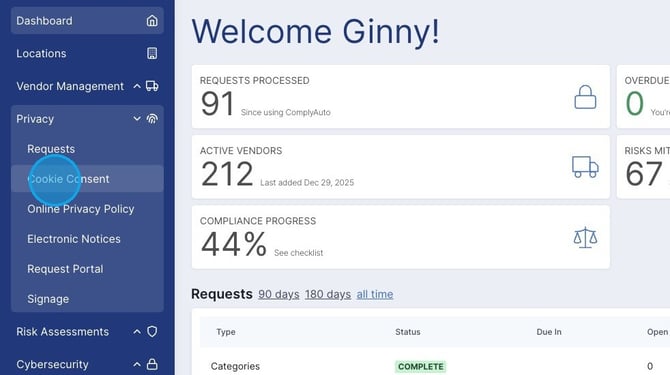
2. Click "Cookie Consent."
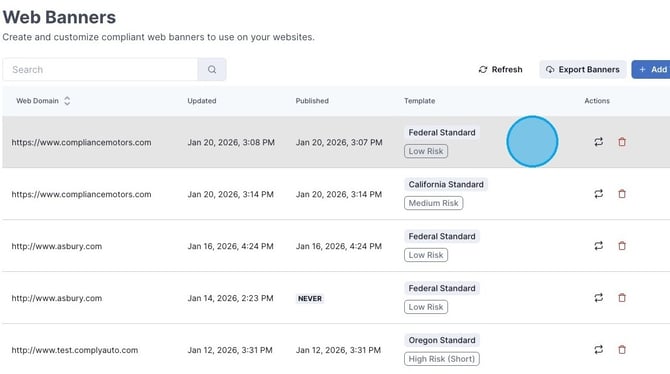
3. To edit, click anywhere on the banner.
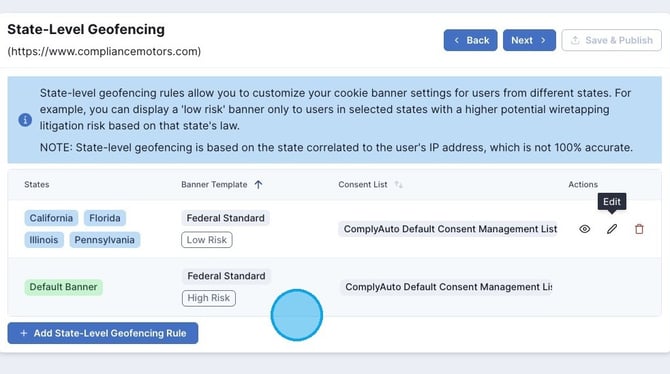
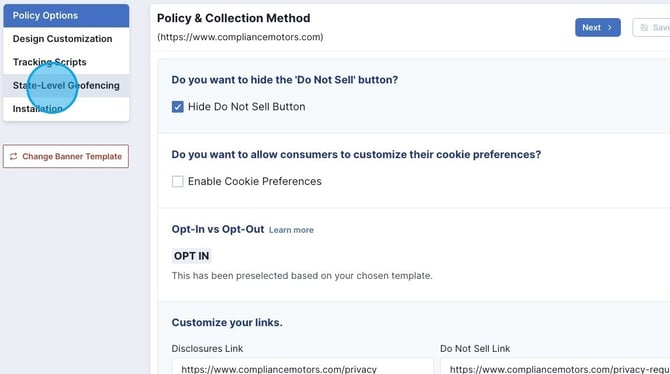
4. Click "State-Level Geofencing."
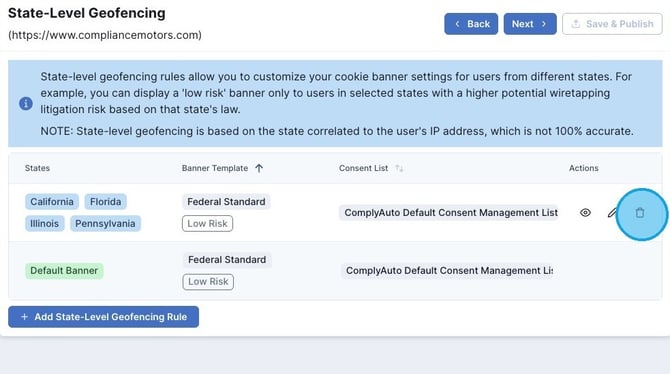
5. To remove state-level geofencing rules, click the trash icon on the right.
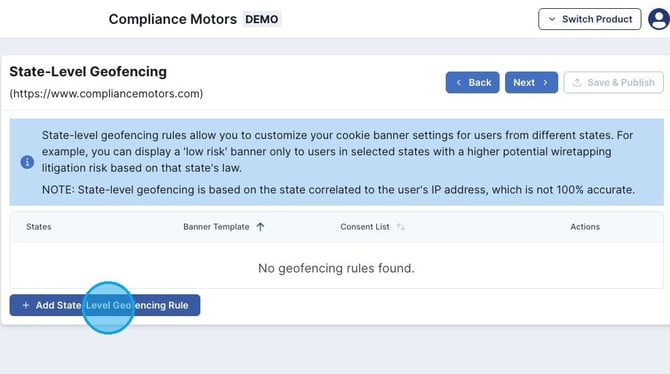
6. To add state-level geofencing rules, click "Add State-Level Geofencing Rule."
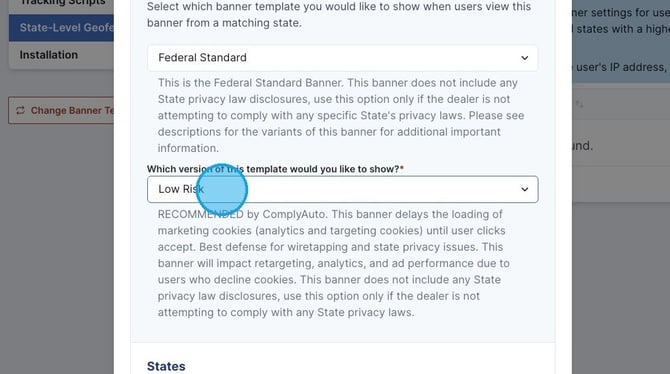
7. From the drop down menu for the banner template, select "Federal Standard" or the appropriate state option if your state is listed.
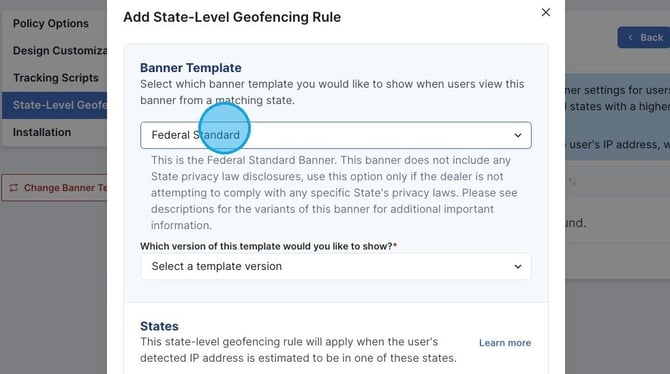
8. For the banner version, select the "Low Risk" option from the drop-down menu.
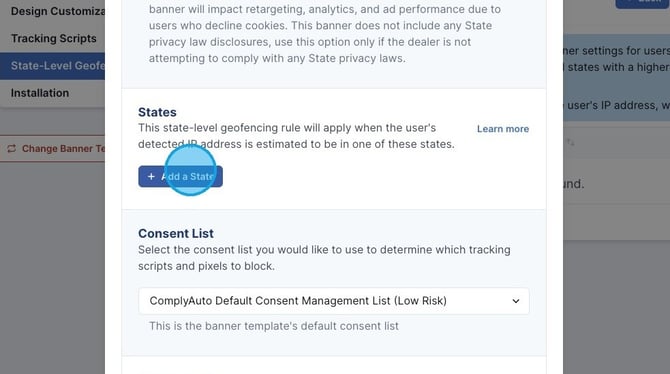
9. Click "Add a State."
10. Choose the states you want to add geofencing for. You will need to click "Add a State" each time.
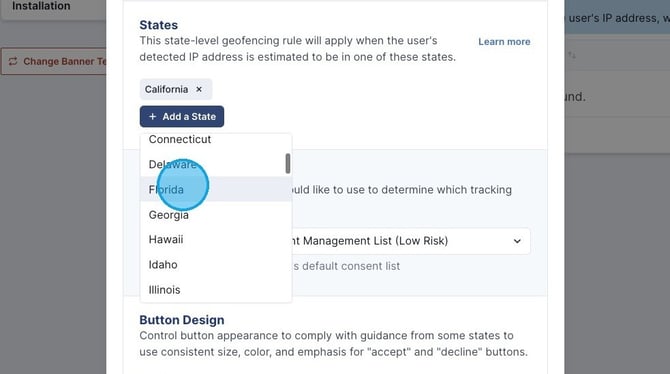
Tip! ComplyAuto recommends adding state-level geofencing for California, Florida, Illinois, and Pennsylvania.
11. Click "Create" to add geofencing for the selected states.
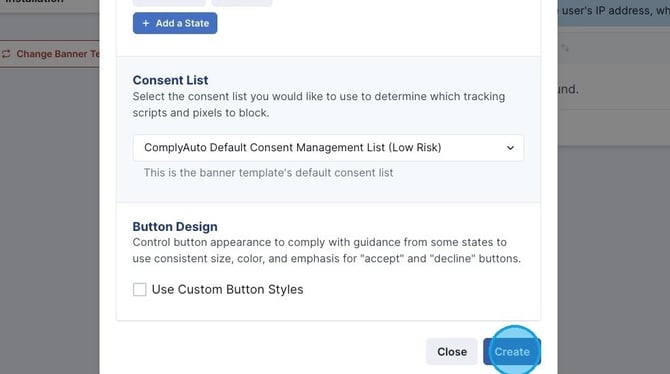
12. State-level geofencing has now been added to your banner.