> Login to ComplyAuto at https://login.complyauto.com/
> Select Workforce as your product
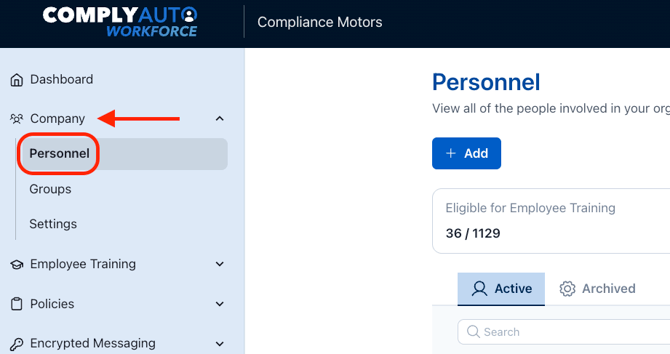
> Click Company and then Select Personnel
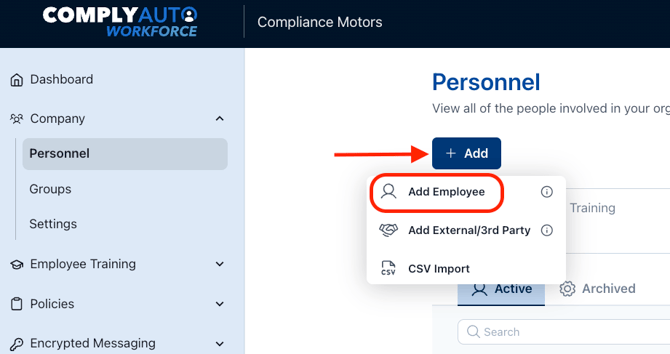
> Click the + Add button and select Add Employee
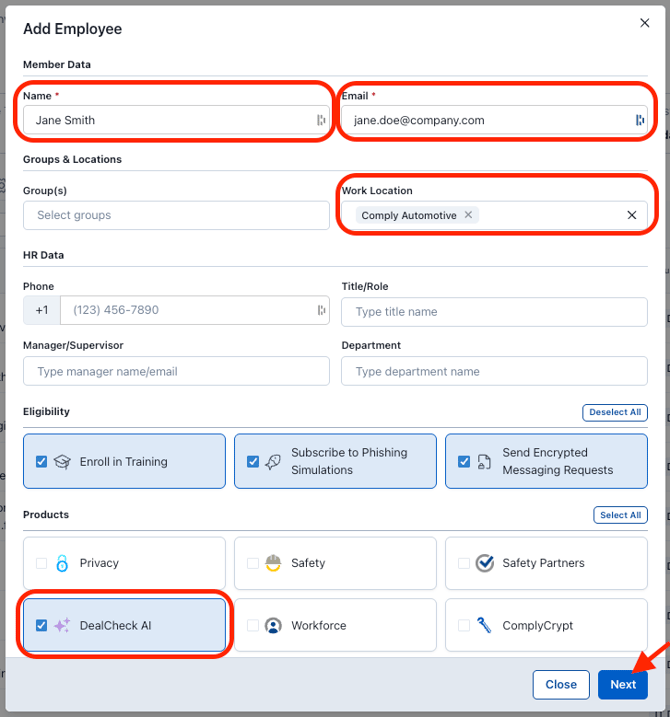
> Enter Name, Email, and select Work Location(s). You can also select what you would like the team member to be eligible for (Training, Phishing Simulations, and Encrypted Messaging using ComplyCrypt).
> Select DealCheck AI under products the team member needs access to, and click the Next button.
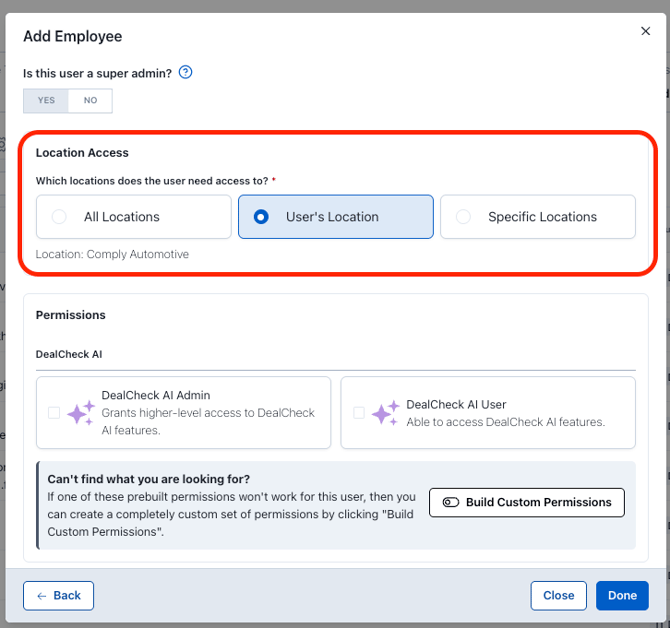
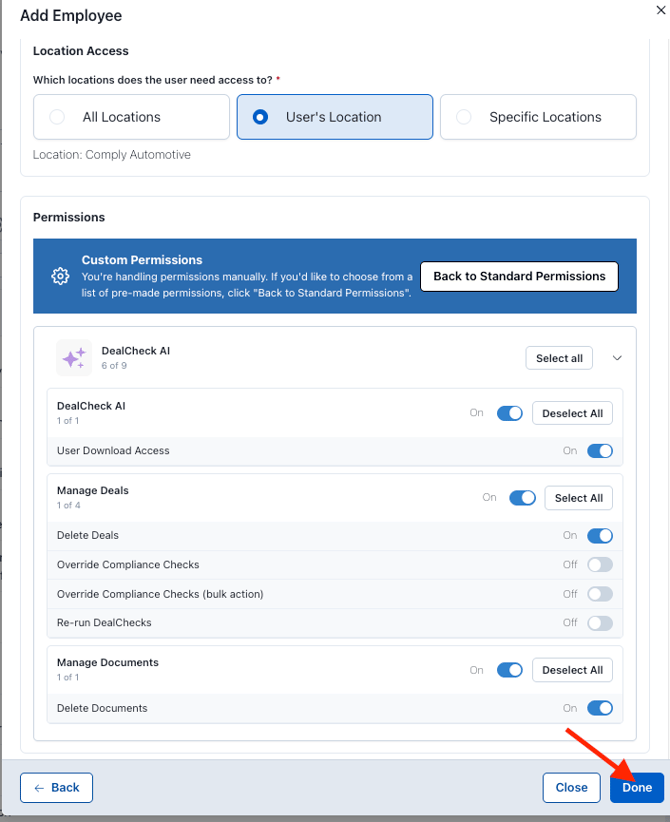
> Select if the user should have access to All Locations, User's Location (this would be the location(s) we specified in the previous step), or Specific Locations you add here.
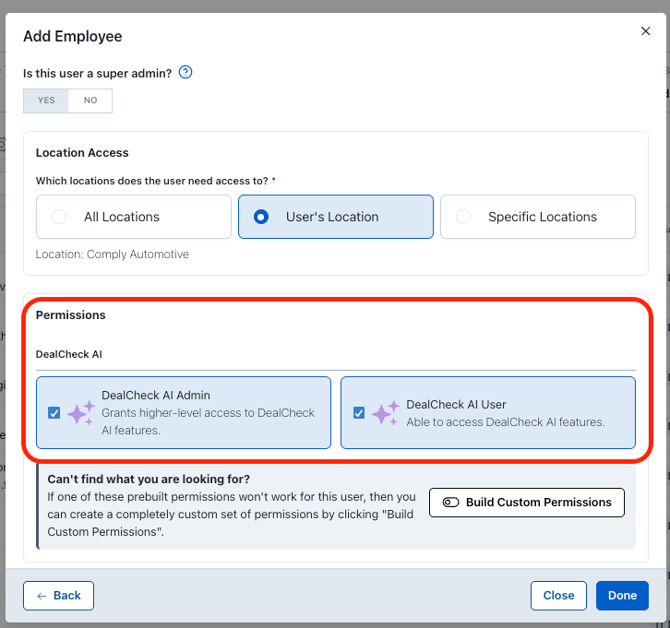
> Add permissions for the user. Note if permissions aren't added the user will be able to access DealCheck but won't have access to view/do anything.
DealCheck AI User allows the basic DealCheck permissions, and DealCheck AI Admin will add Account Analytics access for the user.
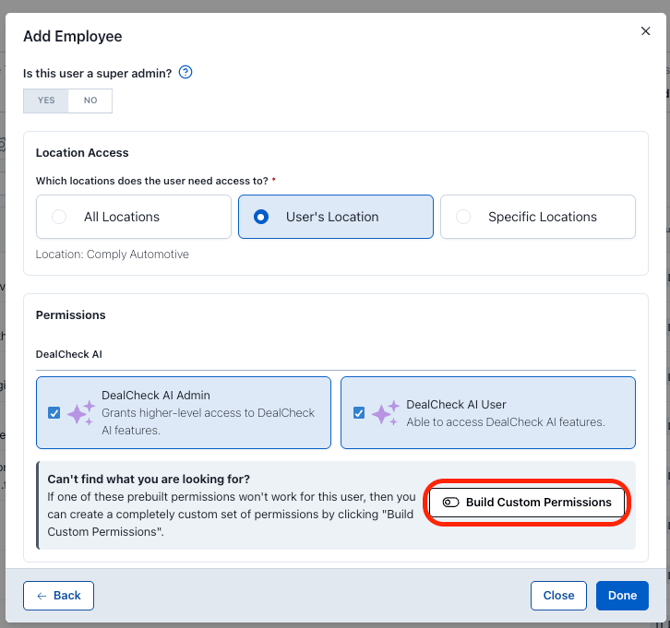
> Alternatively, if you would rather customize what permissions this user has you can click Build Custom Permissions. This will override the previous pre-set DealCheck permissions.
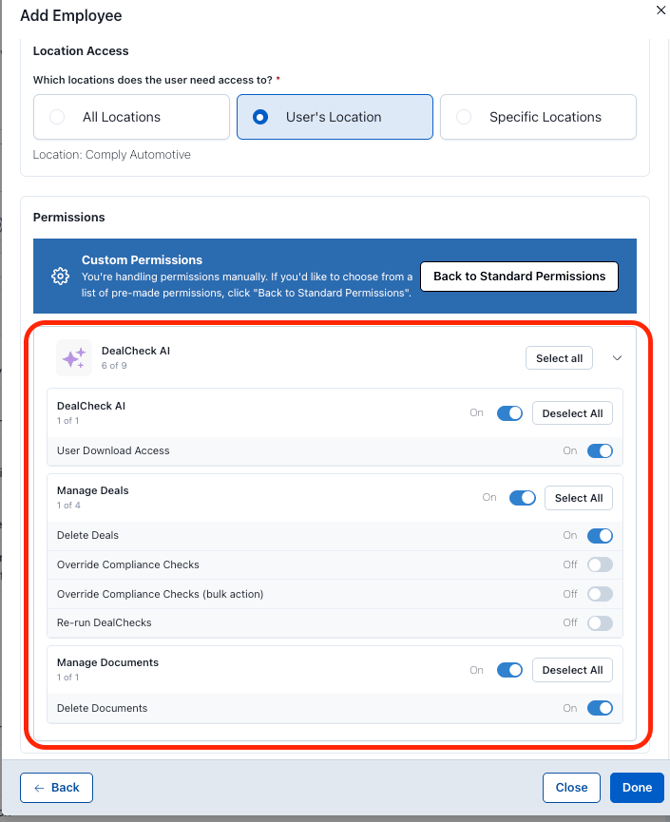
> Click on each permission set to open them up and toggle permissions on or off.
> After you have added permissions, click the Done button.
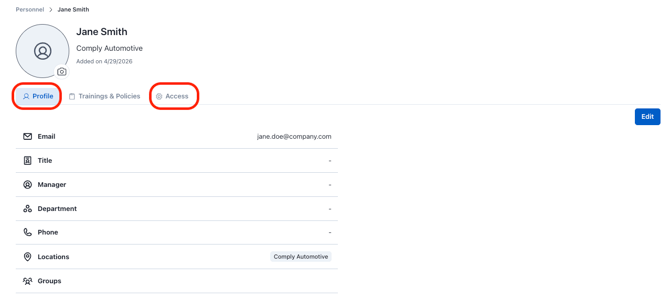
> Once you have successfully added your user it will take you to the employee's Profile where you can edit their Profile or Access.
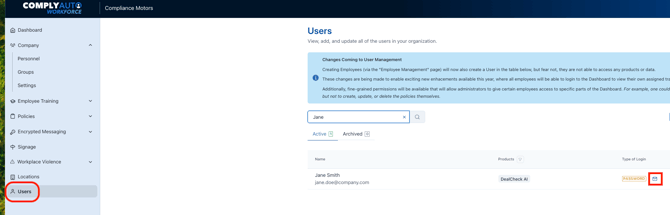
>The user will receive an email to set up their password. If you need to resend them the email to set up their password, navigate to >Users >Search for your User >Click the email icon to resend the setup email